pamsys
Sakellariou 39
19012 Vilia Attika
Greece
Homepage: https://pamsys.com/
Contact for windows users: windows@lexisaudioeditor.com
Contact for android users: android@lexisaudioeditor.com
Contact for iOS users: ios@lexisaudioeditor.com
Privacy Policy
All data (recorded files) are solely stored at the location selected by the user (local file system). Apart from that the information is not collected, used, stored, transmitted or circulated in any way.
The data send to the cloud service for filtering (ai services) will encrypted send and received and will not saved on the ai server.
Datenschutzbestimmungen
Sämtliche Daten (aufgenommene Dateien) werden ausschließlich an dem vom Benutzer festgelegten Speicherort (lokales Dateisystem) abgespeichert und ansonsten in keiner Weise gesammelt, verwendet, gespeichert, übertragen oder weitergegeben.
Die Daten, die zur Filterung an den Cloud-Dienst (ai services) gesendet werden, werden verschlüsselt gesendet und empfangen und nicht auf dem ai-Server gespeichert.
Privacy Policy
Todos los datos (archivos grabados) se almacenan únicamente en la ubicación seleccionada por el usuario (sistema de archivos local). Aparte de eso, la información no se recopila, utiliza, almacena, transmite o circula de ninguna manera.
Los datos enviados al servicio en la nube para su filtrado (servicios ai) se enviarán y recibirán cifrados y no se guardarán en el servidor ai.
隐私政策
所有数据(记录文件)仅存储在用户选择的位置(本地文件系统)。除此之外,不会以任何方式收集、使用、存储、传输或传播信息。
发送到云服务(人工智能服务)进行过滤的数据将加密发送和接收,不会保存在人工智能服务器上。
Open  an existing or record
  a new file.
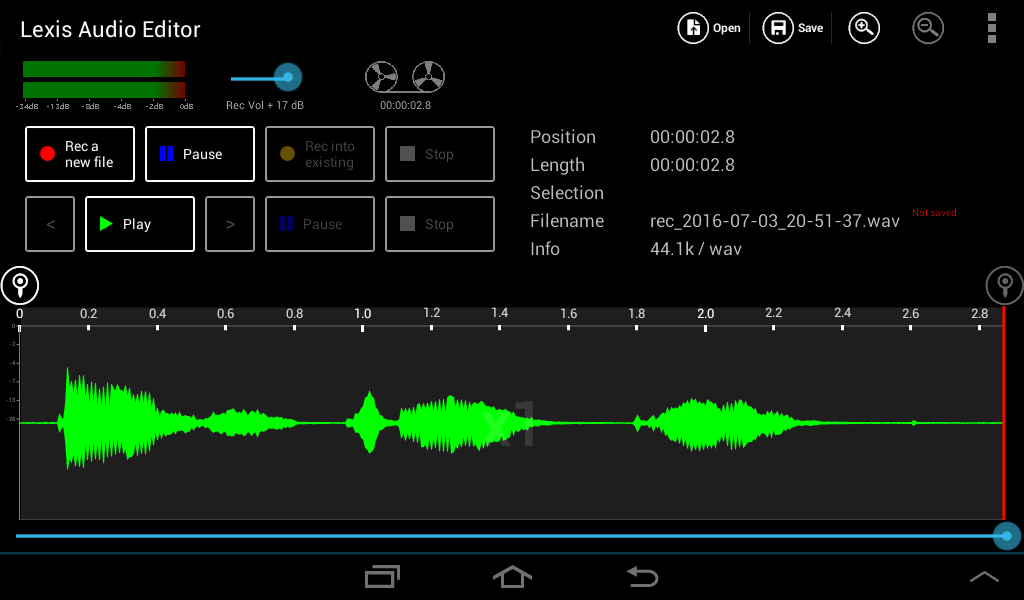
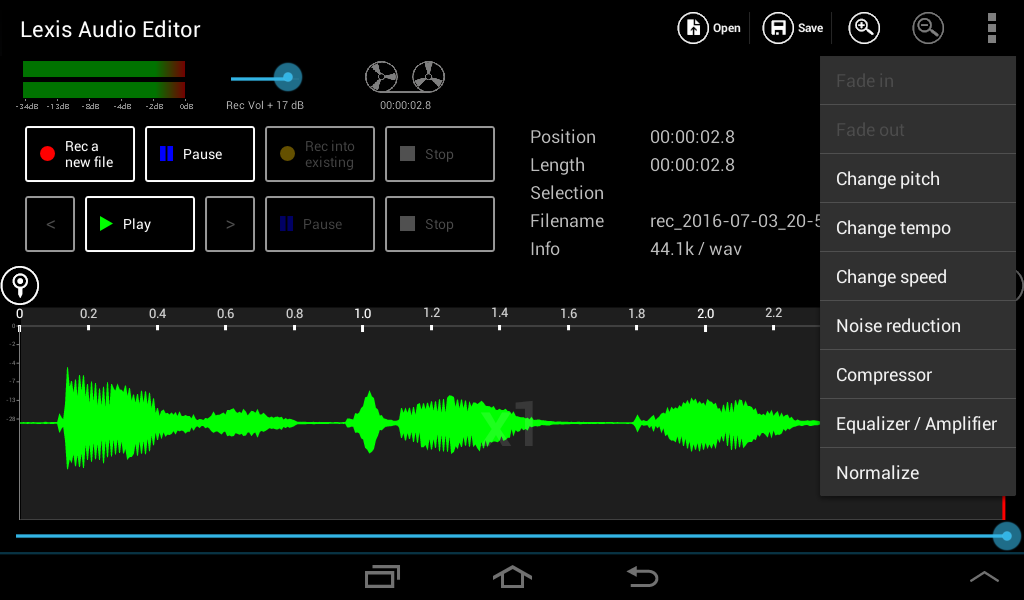
If the audio level is too low, you can normalize the sound file to the maximal possible audio level.
Tap on Effects  and in the menu on “Normalize”.
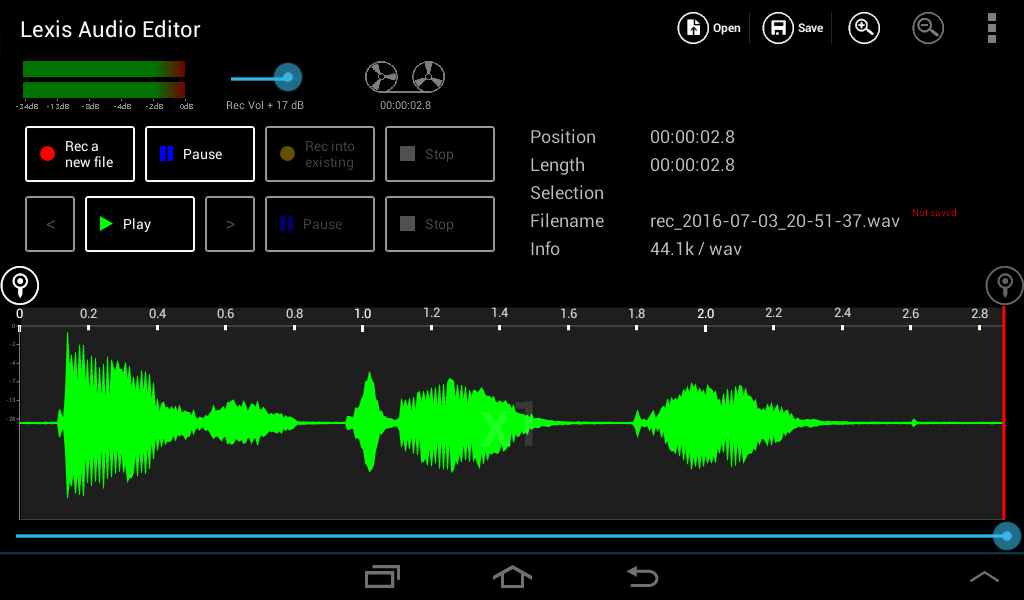
Now the maximal possible level, according the whole record, is applied.
Open an existing or record a new file.
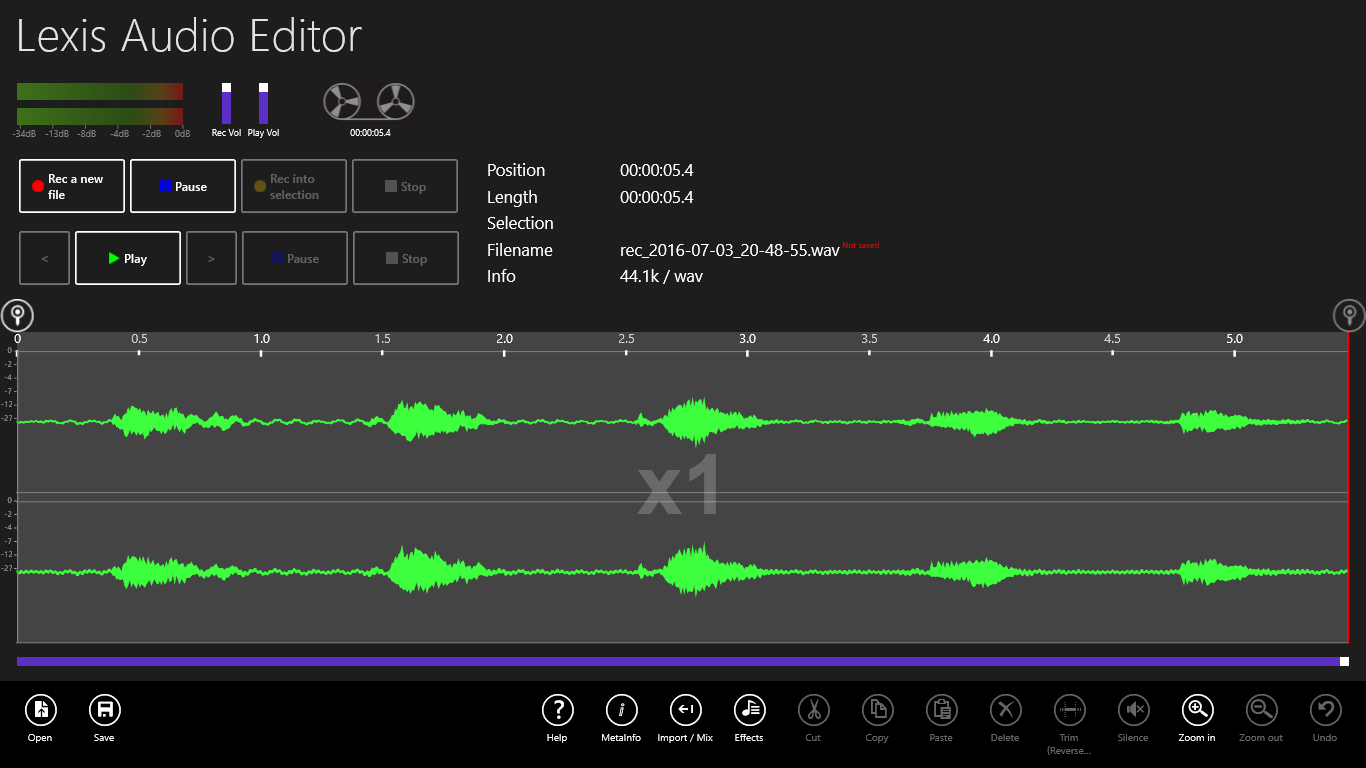
If the audio level is too low, you can normalize the sound file to the maximal possible audio level.
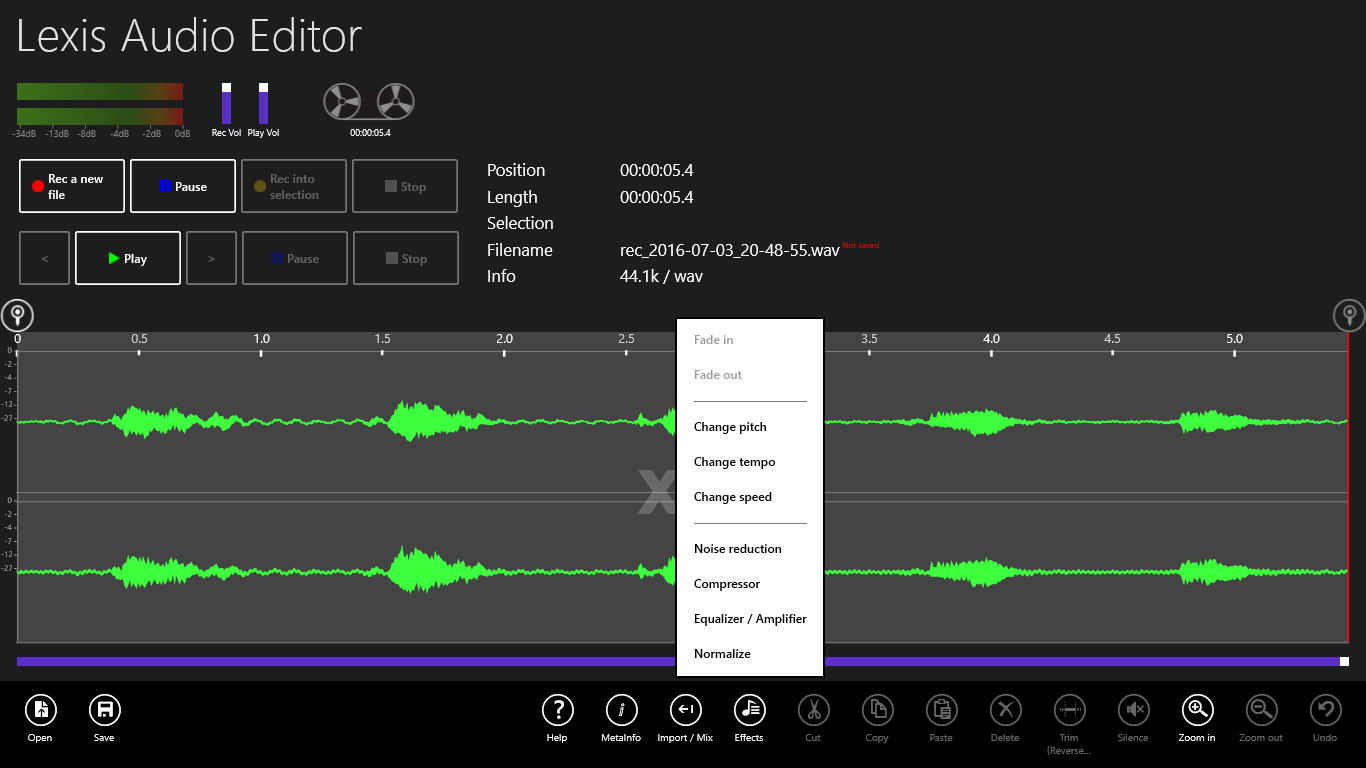
Tap on Effects and in the menu on “Normalize”.
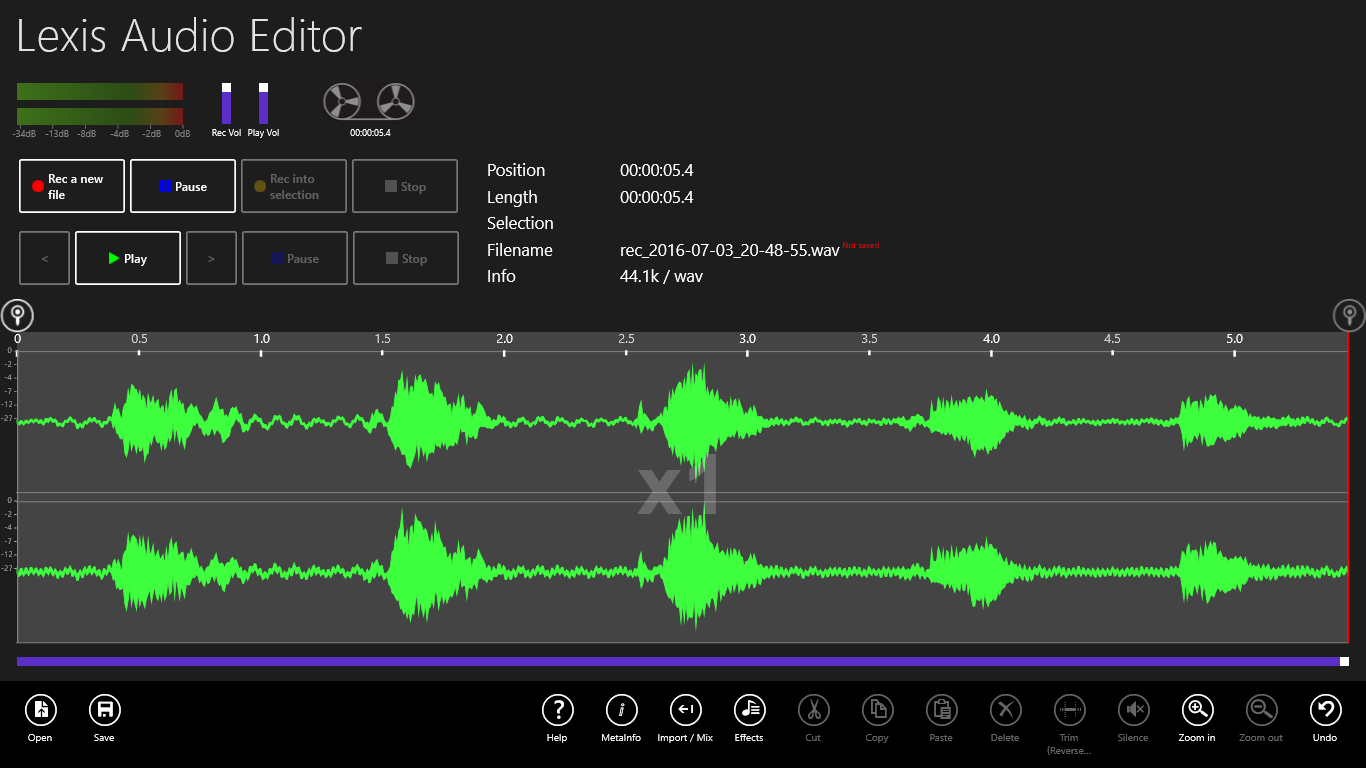
Now the maximal possible level, according the whole record, is applied.
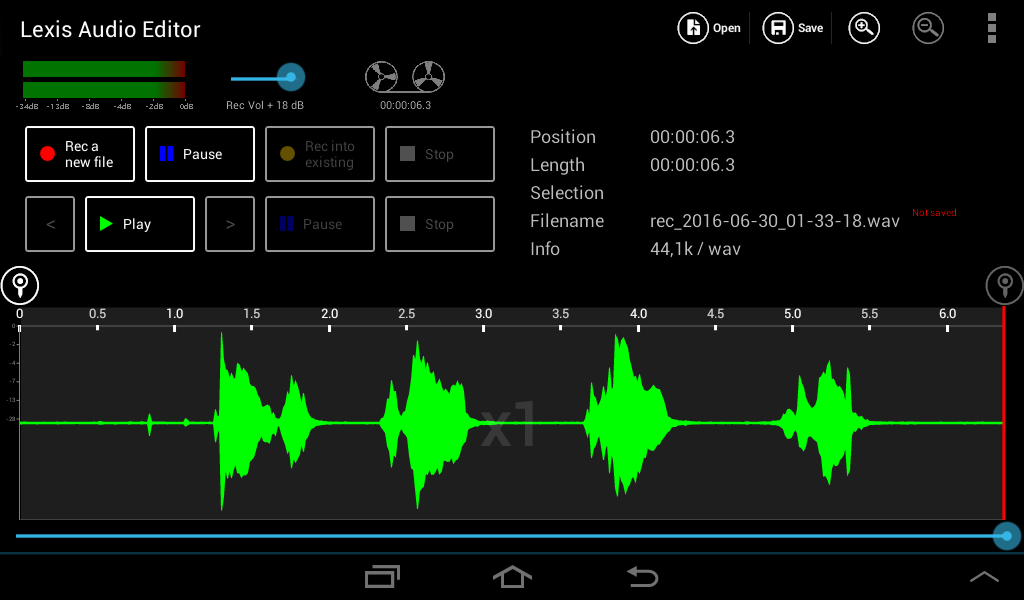
Open an existing or record a new file.
If too much noise is in the record, you can reduce it.
Tap on Effects and in the menu on “Noise reduction”.
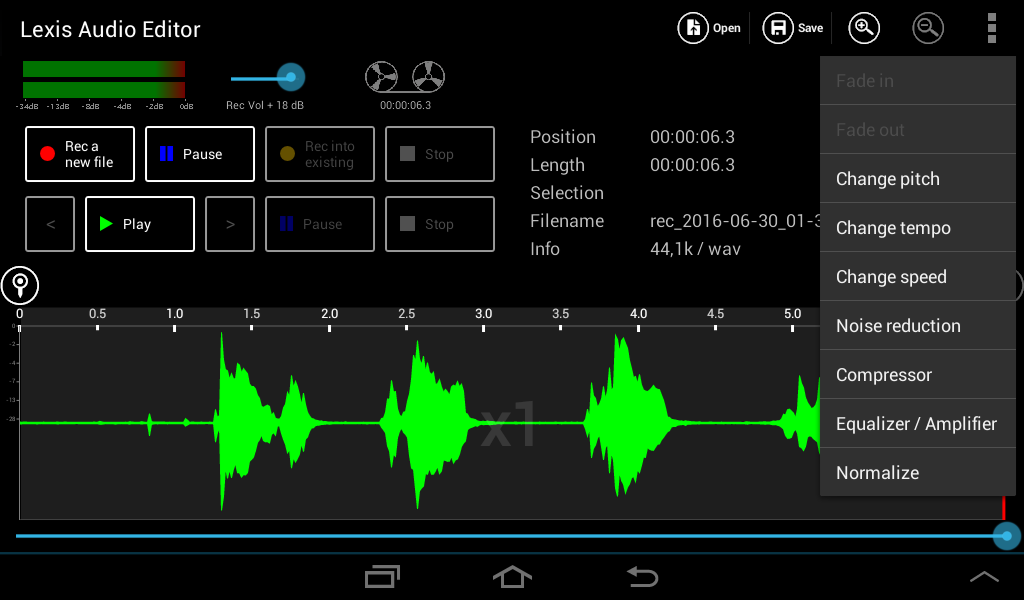
Now you see the dialog for noise reduction.
Tap on Play  to hear the sound with the activated filter. Deactivate the Preview checkbox while the playing to compare the originalsound with the filtered.
To suppress more of the noise sound, you can increase the Threshold.
With the “Cut off frequency” you can suppress the typical hight frequency noise.
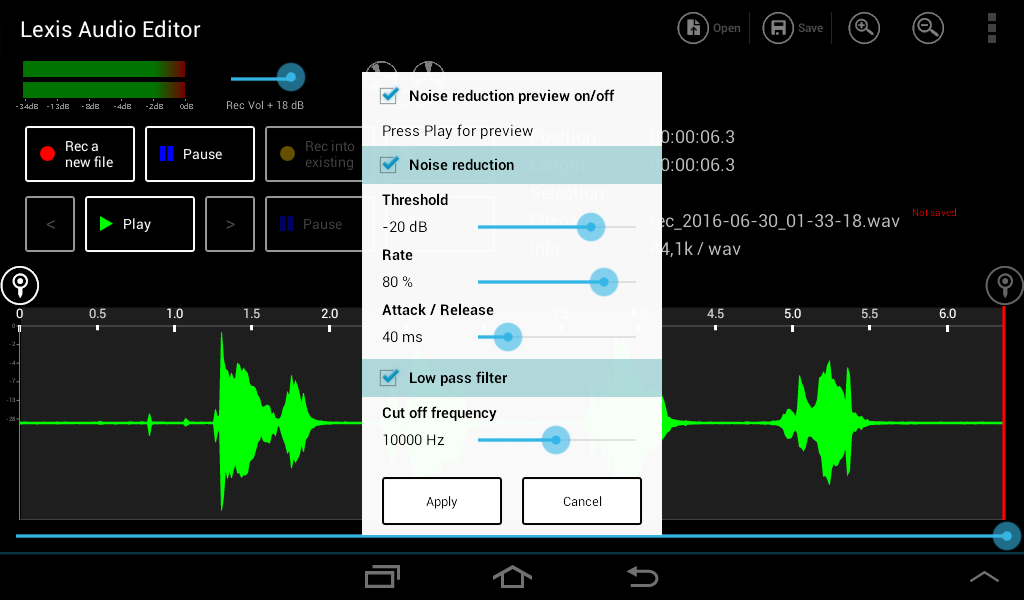
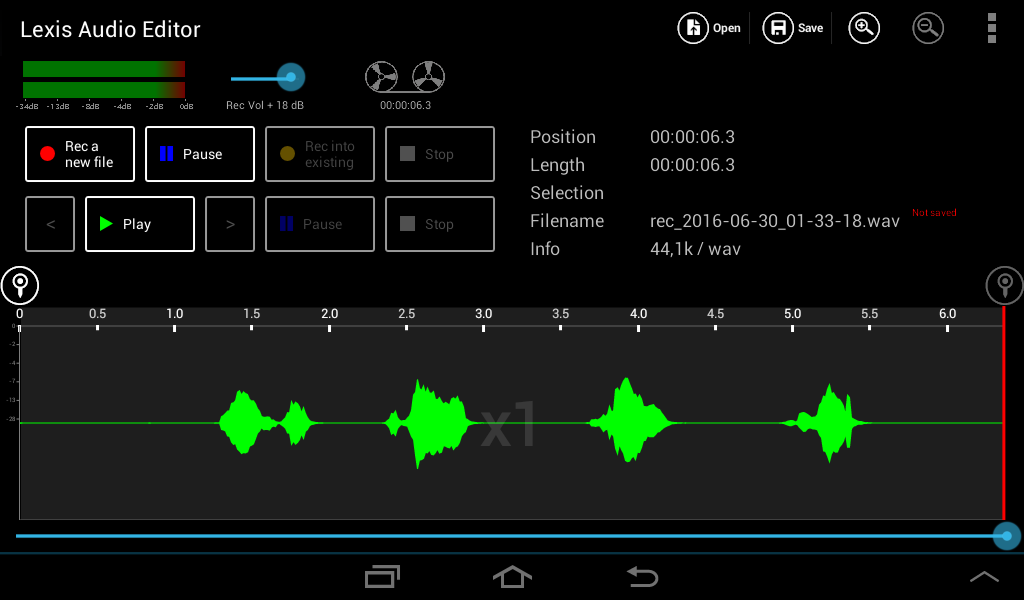
Tap on Apply. Now you see in the silent areas the effect of the noise reduction.
Open an existing or record a new file.
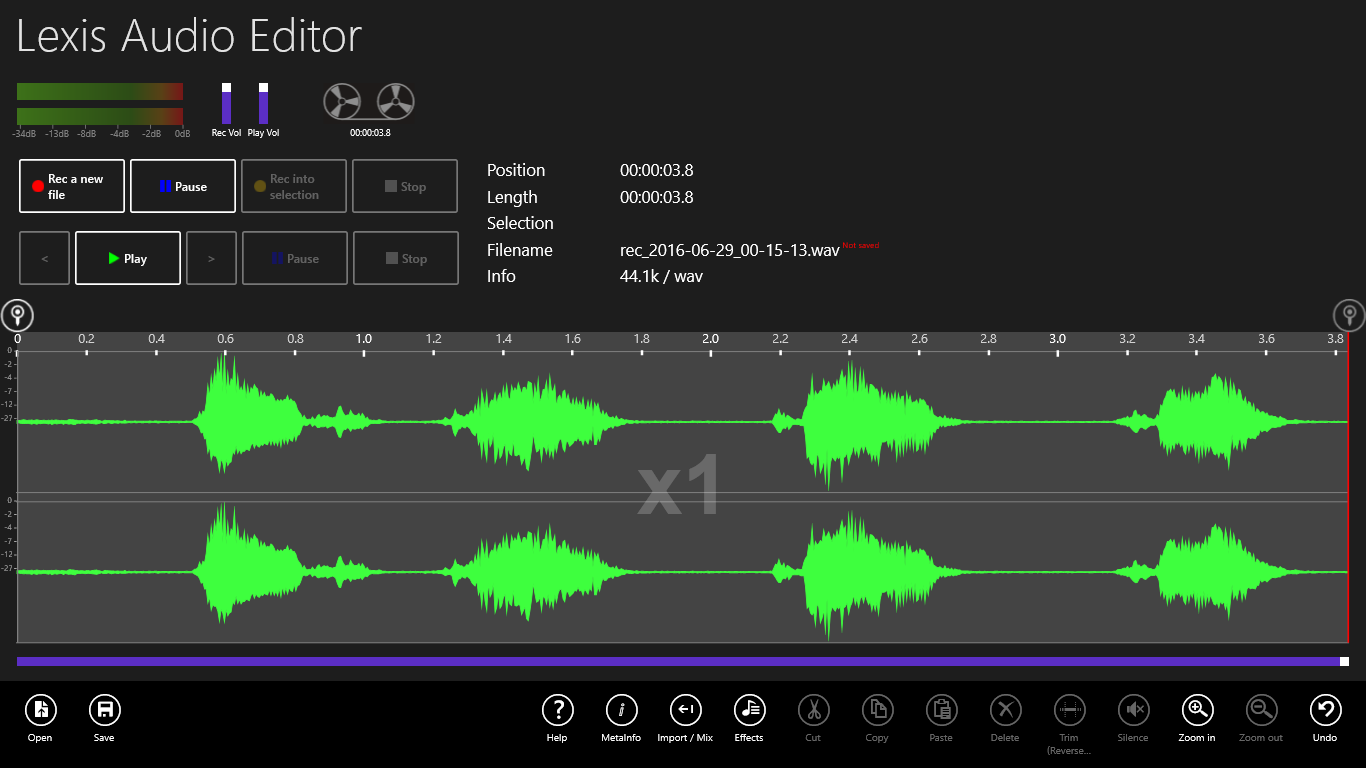
If too much noise is in the record, you can reduce it.
Tap on Effects and in the menu on “Noise reduction”.
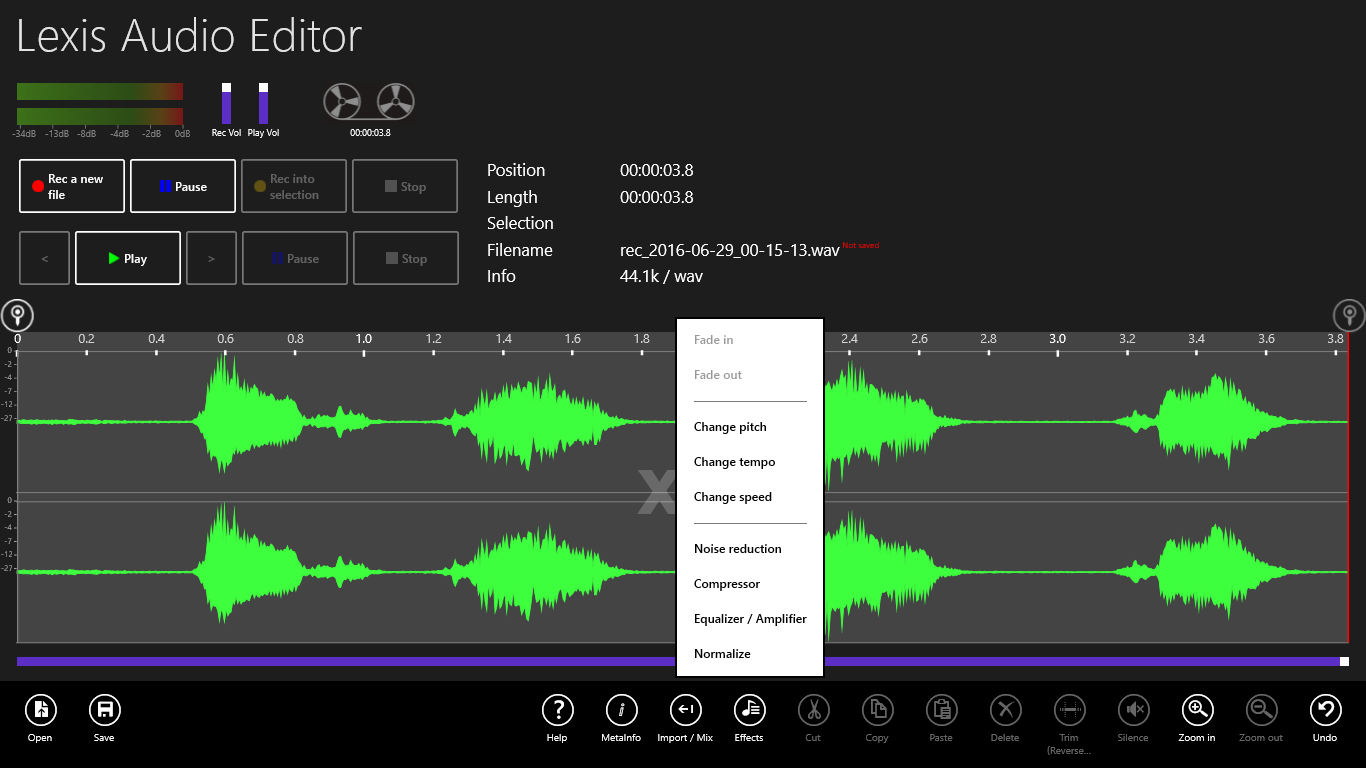
Now you see the dialog for noise reduction.
Tap on Play to hear the sound with the activated filter. Deactivate the Preview checkbox while the playing to compare the originalsound with the filtered.
To suppress more of the noise sound, you can increase the Threshold.
With the “Cut off frequency” you can suppress the typical hight frequency noise.
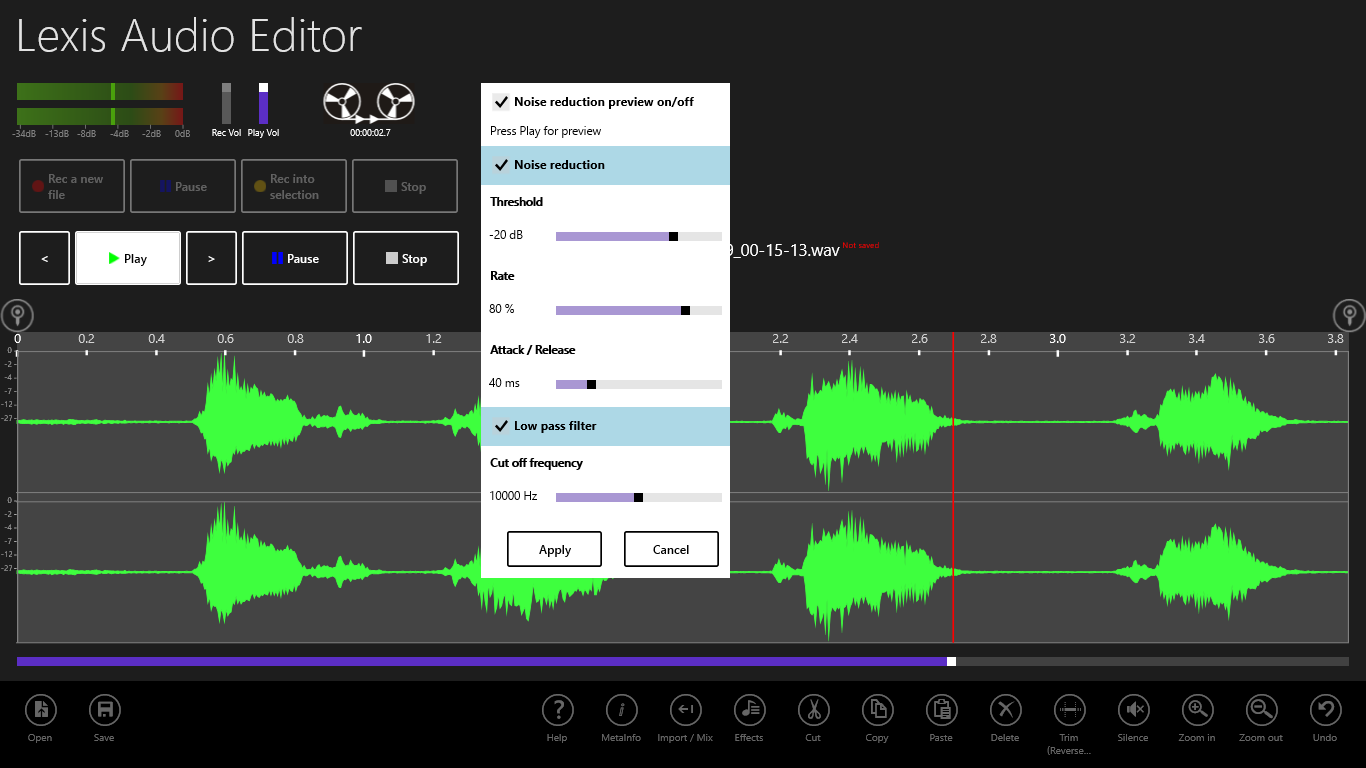
Tap on Apply. Now you see in the silent areas the effect of the noise reduction.
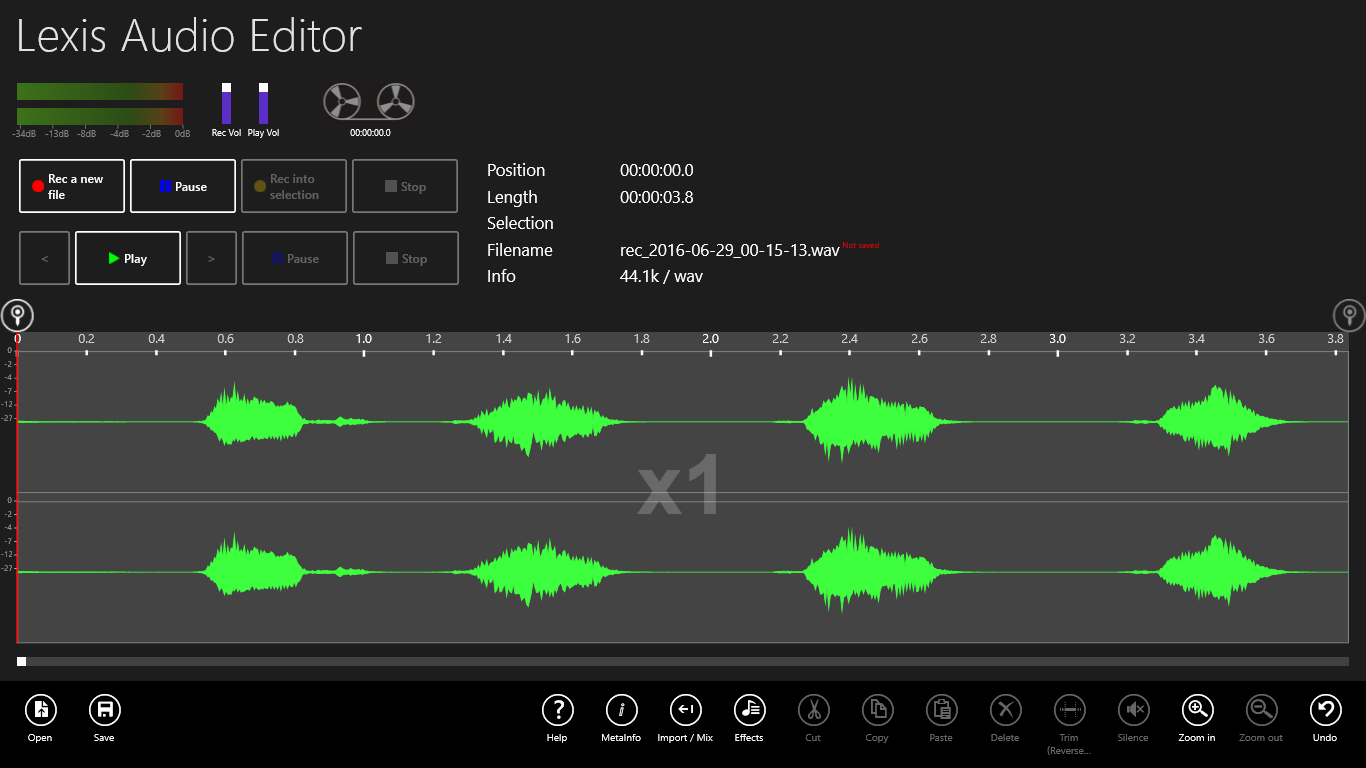
Open an existing or record a new file.
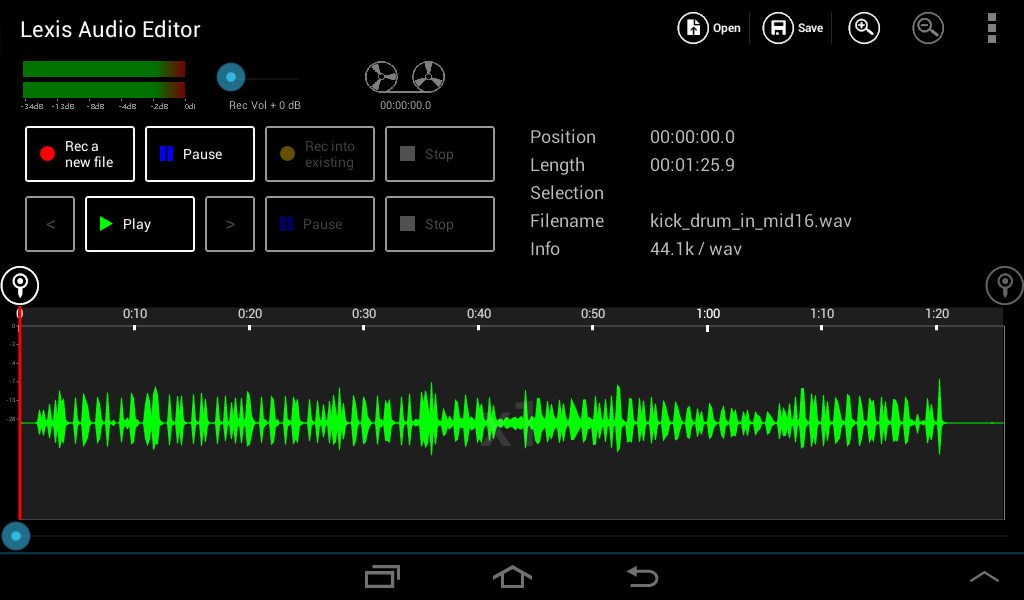
Tap on Import / Mix  and in the menu on “Mixes the current file with another file”.
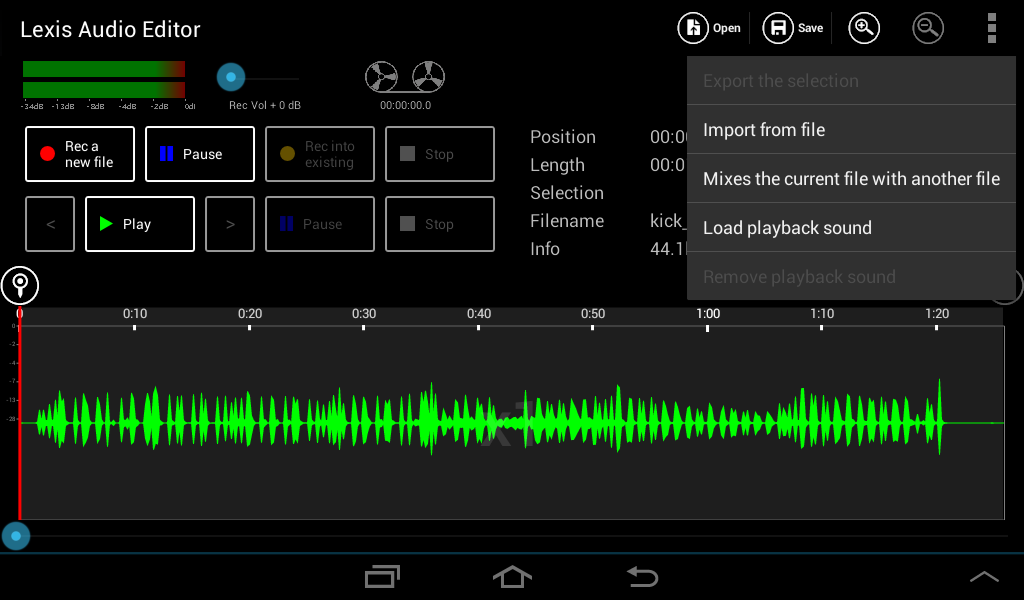
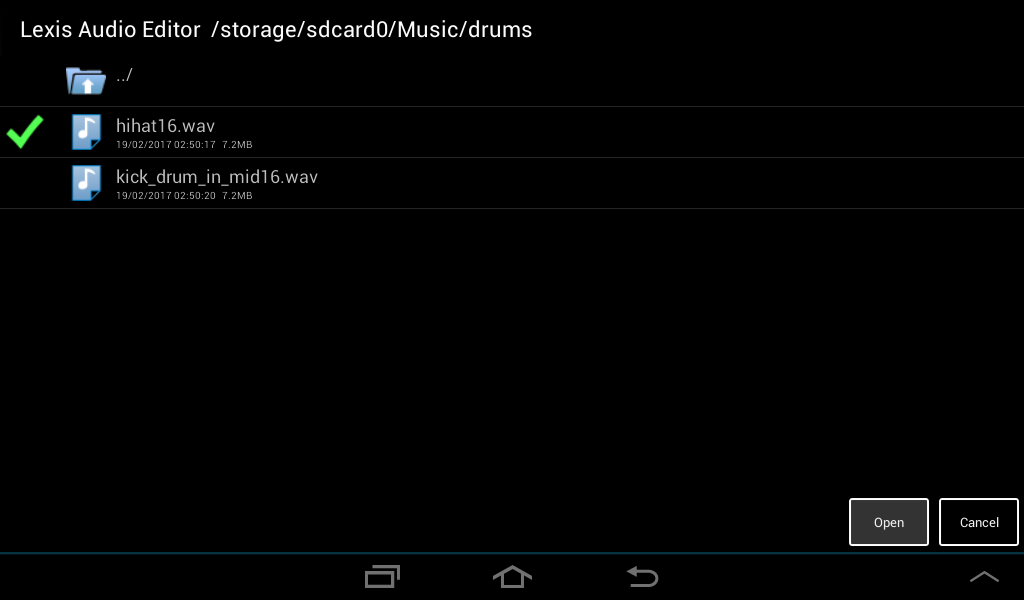
Choose a file and tap on Open.
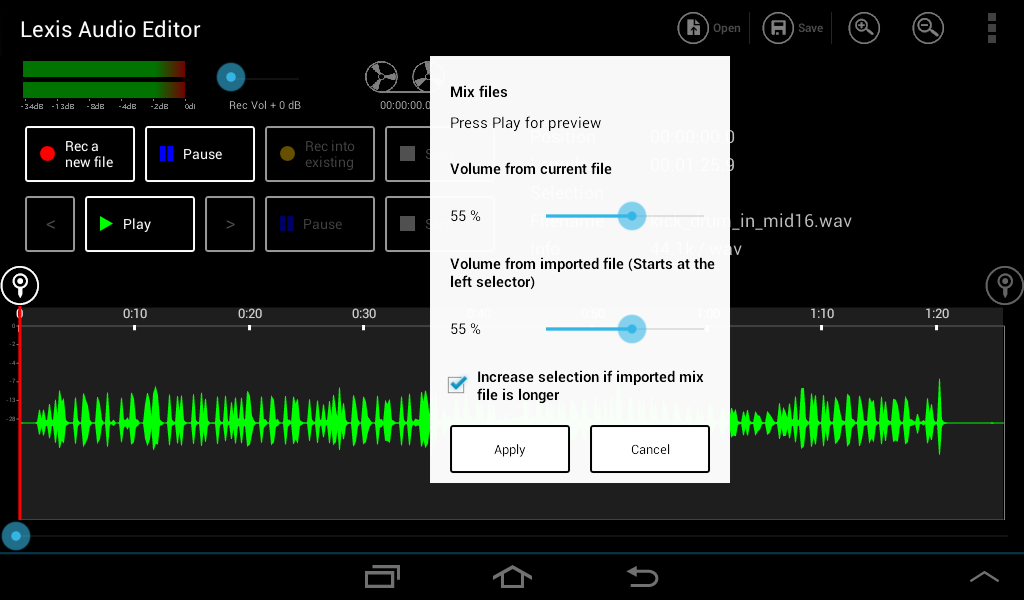
In the dialog “Mix files” you can set the audio level of the current file and the imported file.
If the checkbox “Increase the selection if imported mix file is longer” is checked, the result duration will increase at the end, if the imported file is longer than the end if the current file.
Set the desired start position with the start selector  . It is the startpoint to mix in the second file.
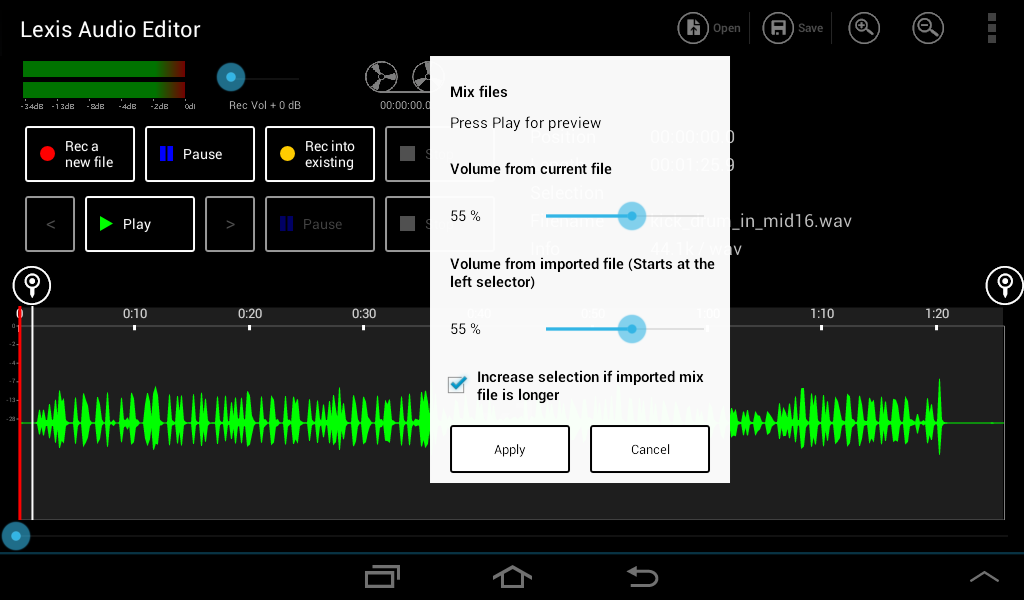
Click on Play for preview to verify the startposition and the mix volumes of the two files.
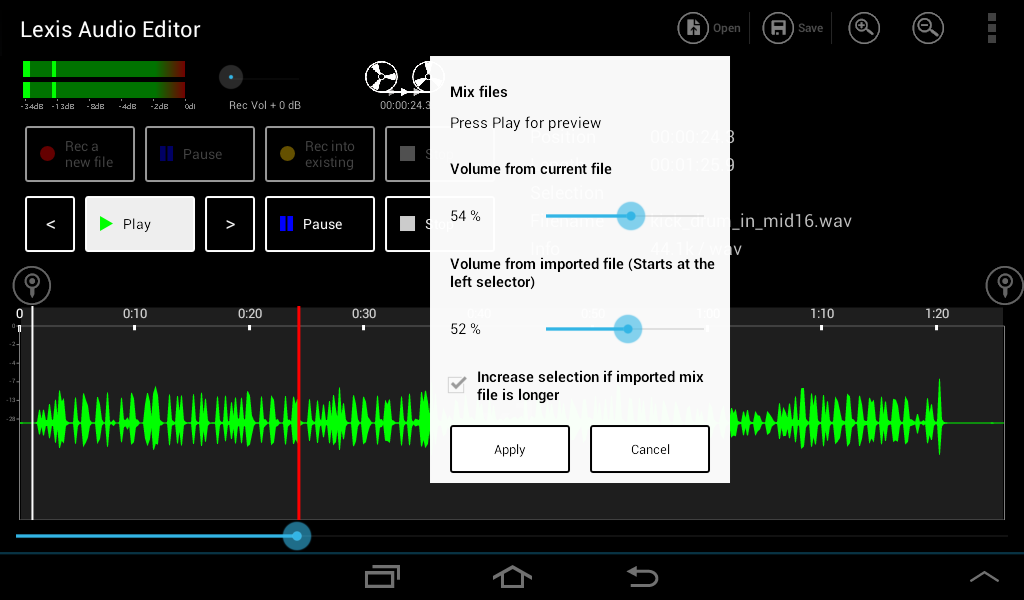
Tap on “Apply” to mix the two files. You can see the mixed result between the start and end selector.
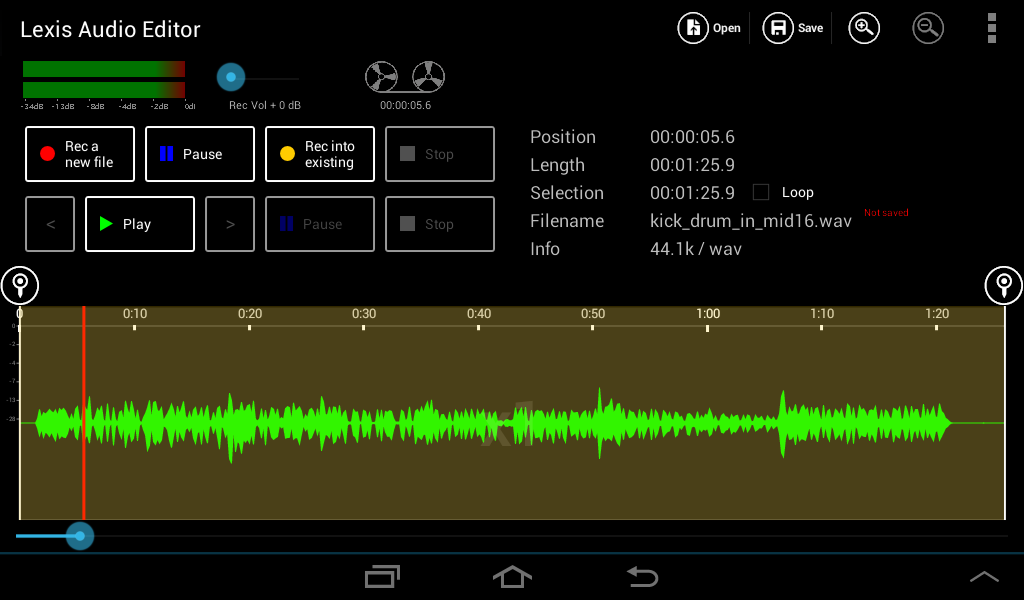
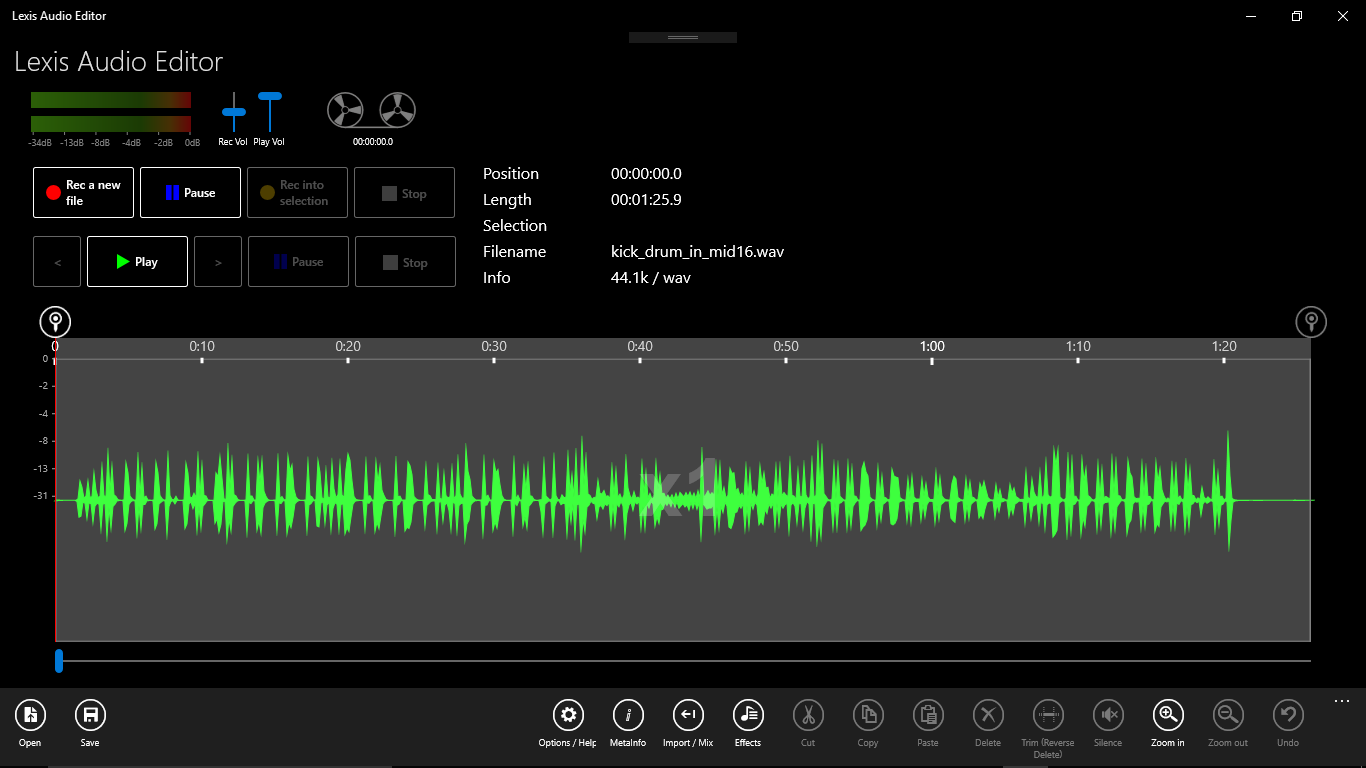
Open an existing or record a new file.
Tap on Import / Mix and in the menu on “Mixes the current file with another file”.
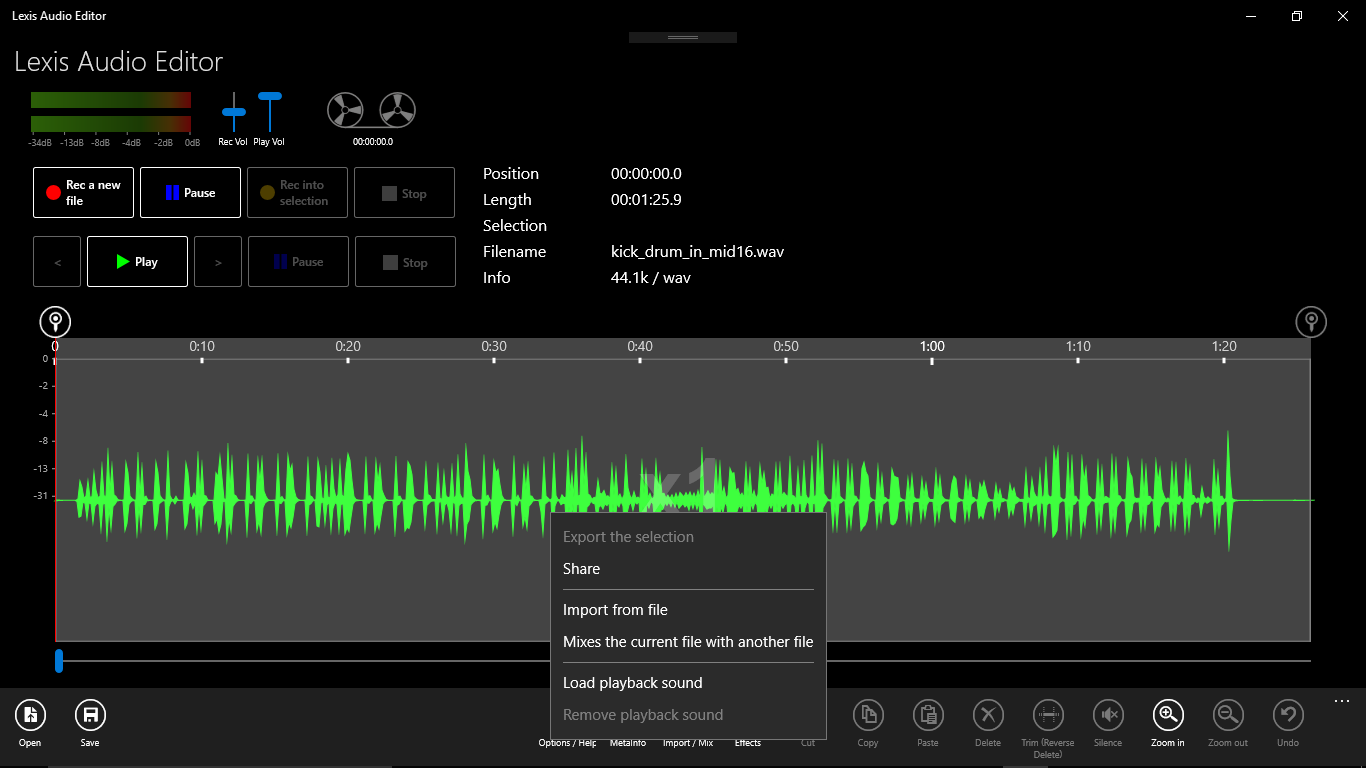
Choose a file and tap on Open.
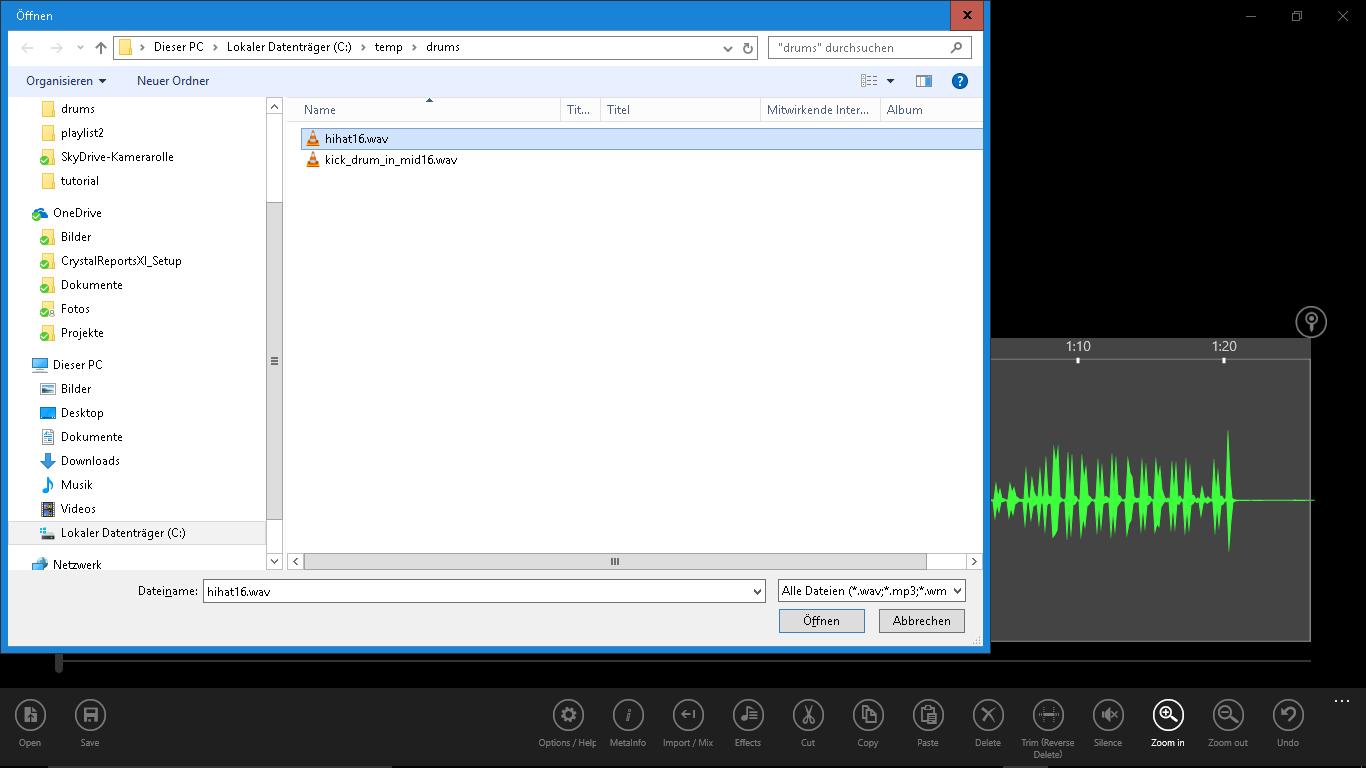
In the dialog “Mix files” you can set the audio level of the current file and the imported file.
If the checkbox “Increase the selection if imported mix file is longer” is checked, the result duration will increase at the end, if the imported file is longer than the end if the current file.
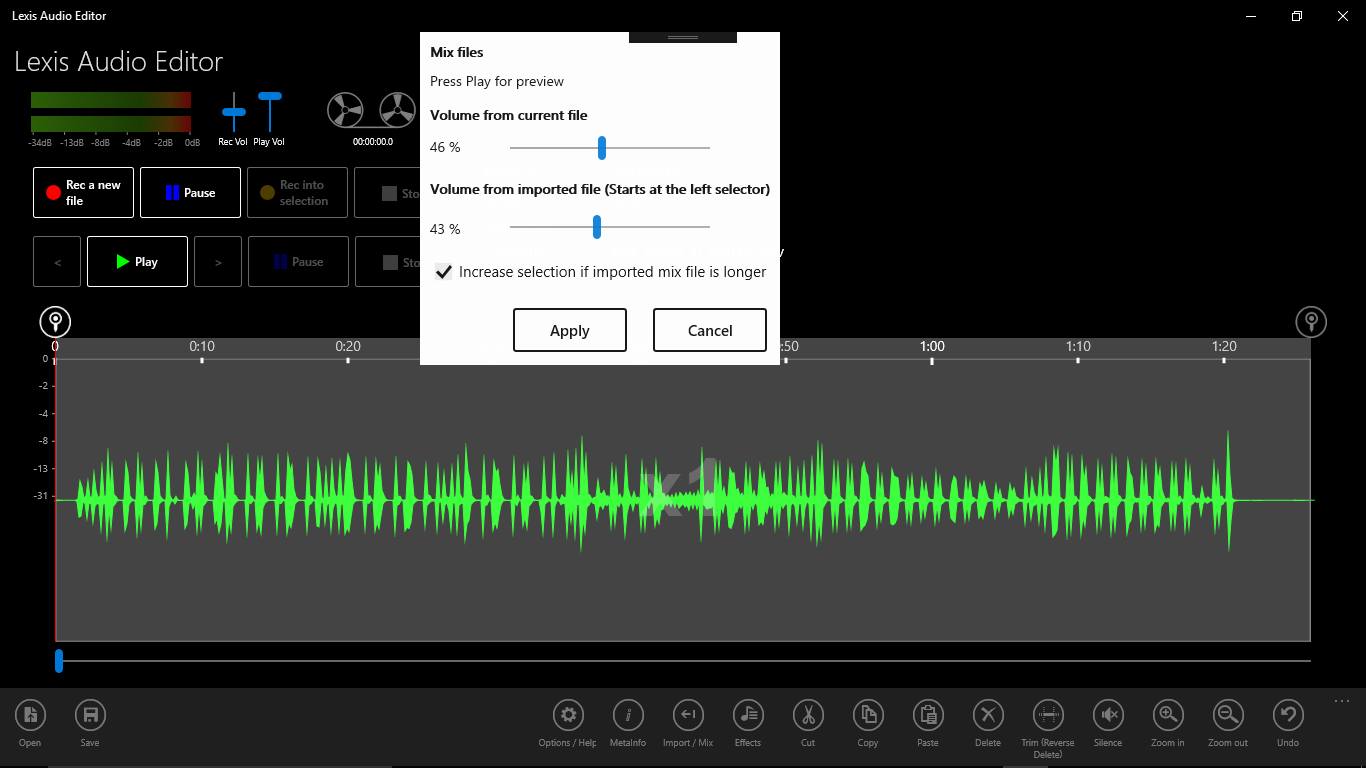
Set the desired start position with the start selector . It is the startpoint to mix in the second file.
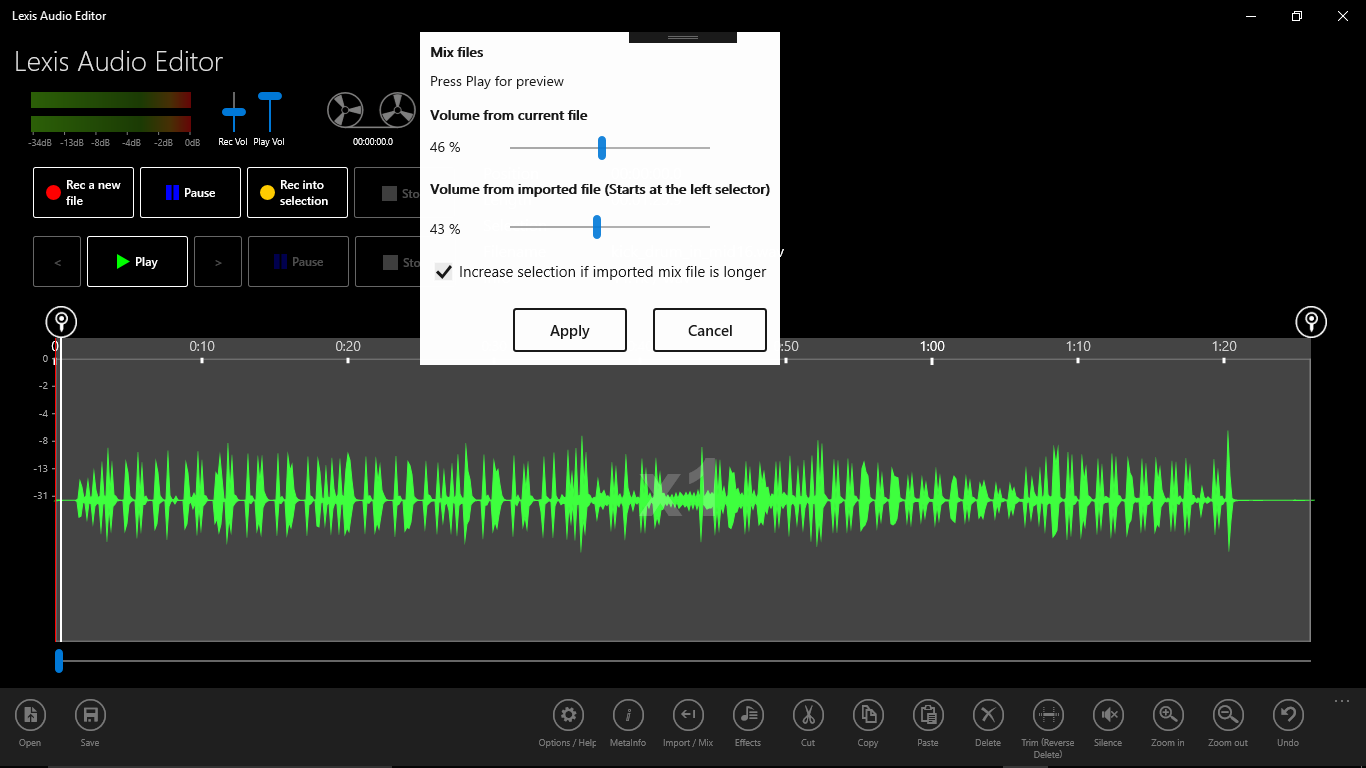
Click on Play for preview to verify the startposition and the mix volumes of the two files.
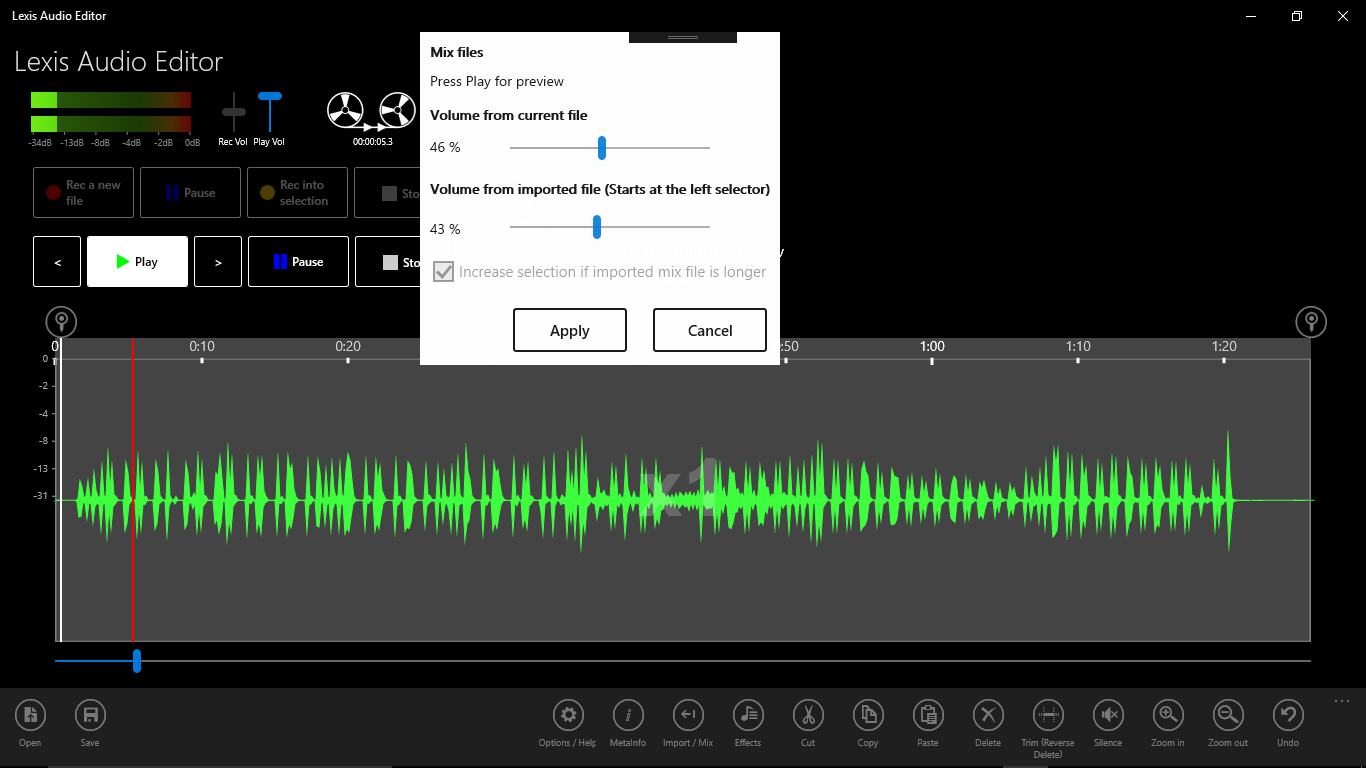
Tap on “Apply” to mix the two files. You can see the mixed result between the start and end selector.
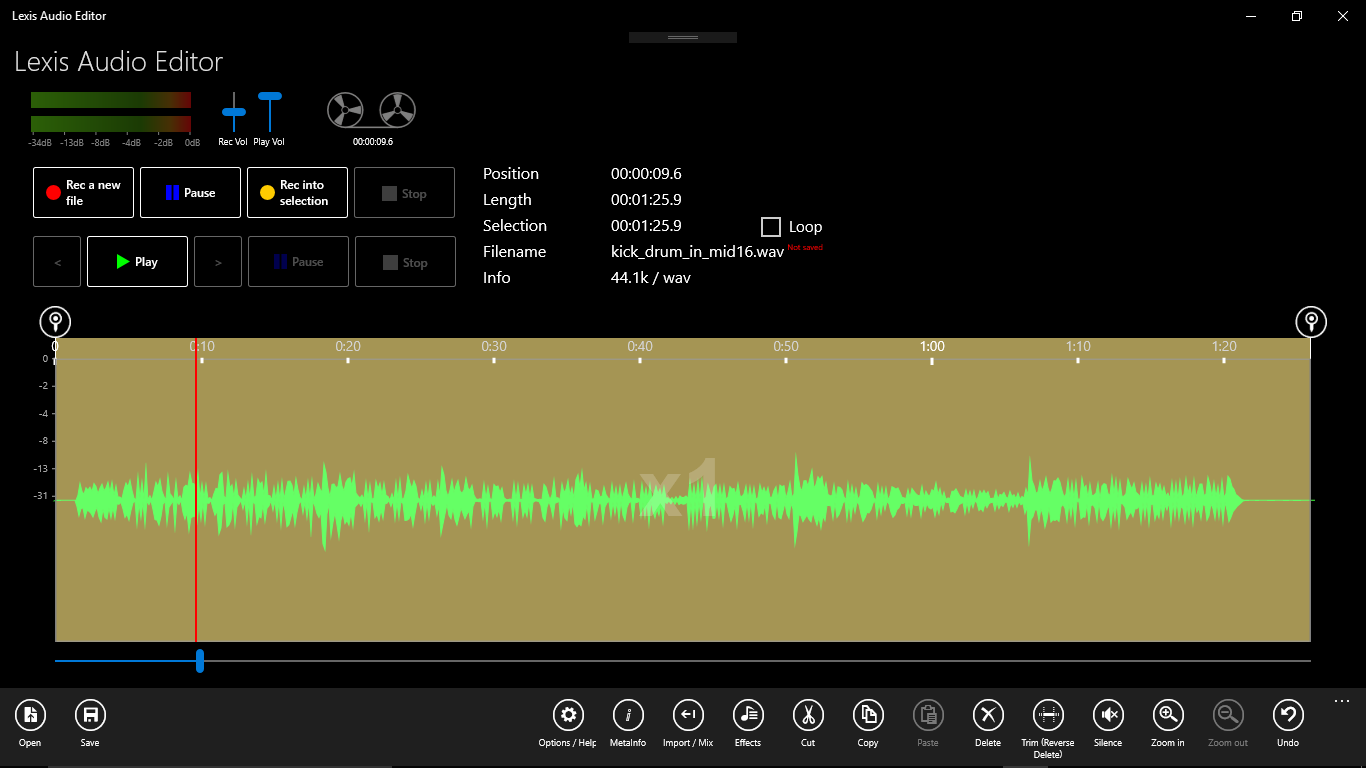
Open an existing or record a new file.
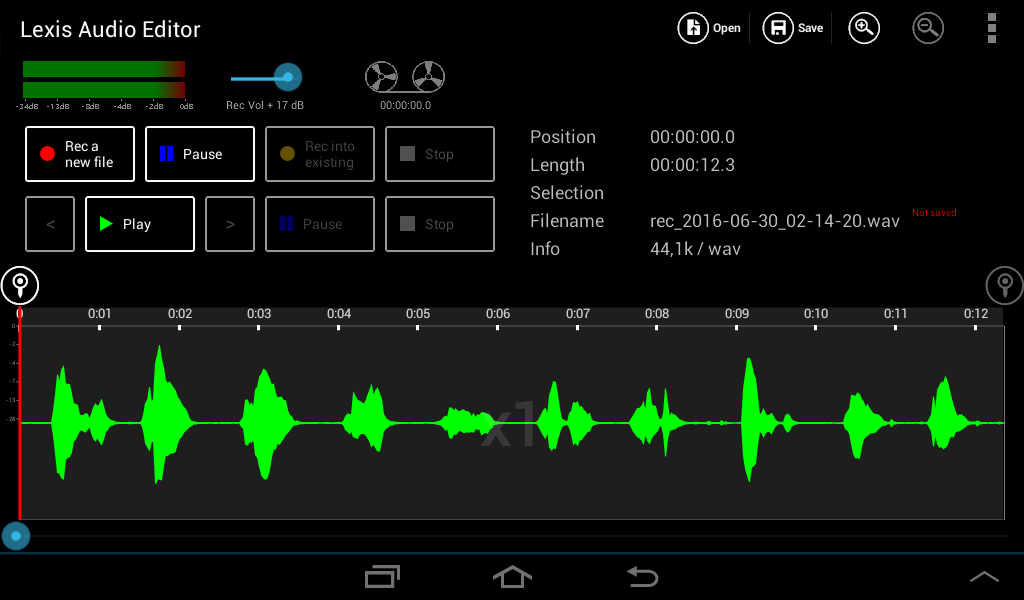
Select a start position or a range with a start and end position. At this position or range the new record will insert.
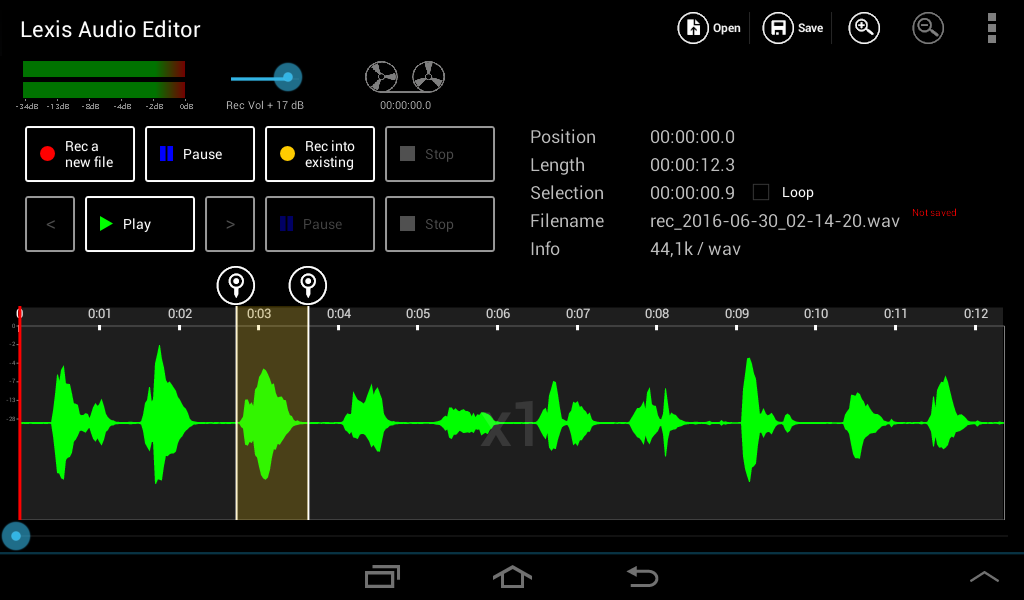
Tap on Rec into selection  and record your audio sound.
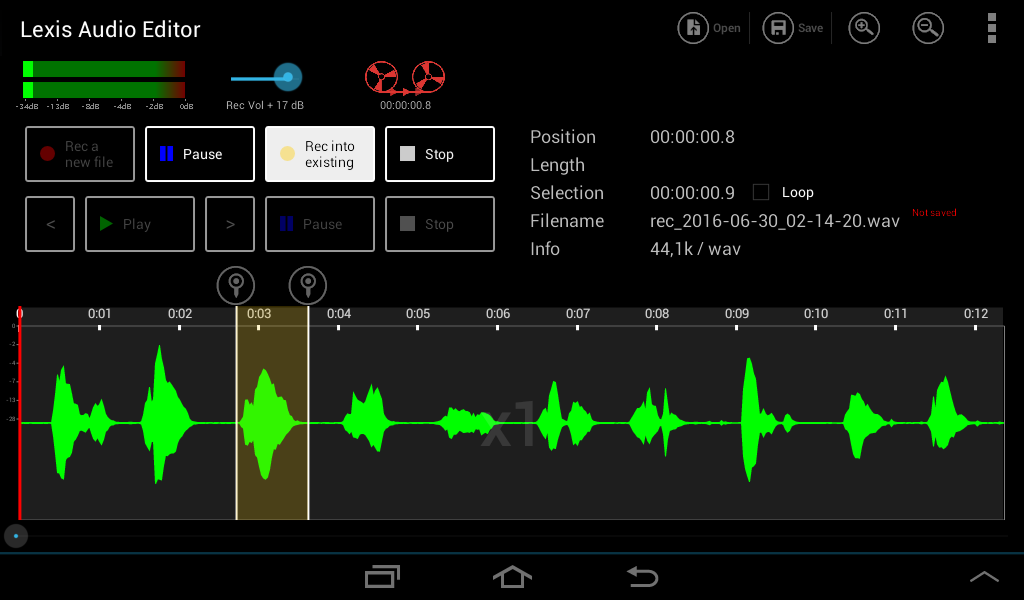
The recorded audio sound will insert in your defined range and the old sound will overwritten.
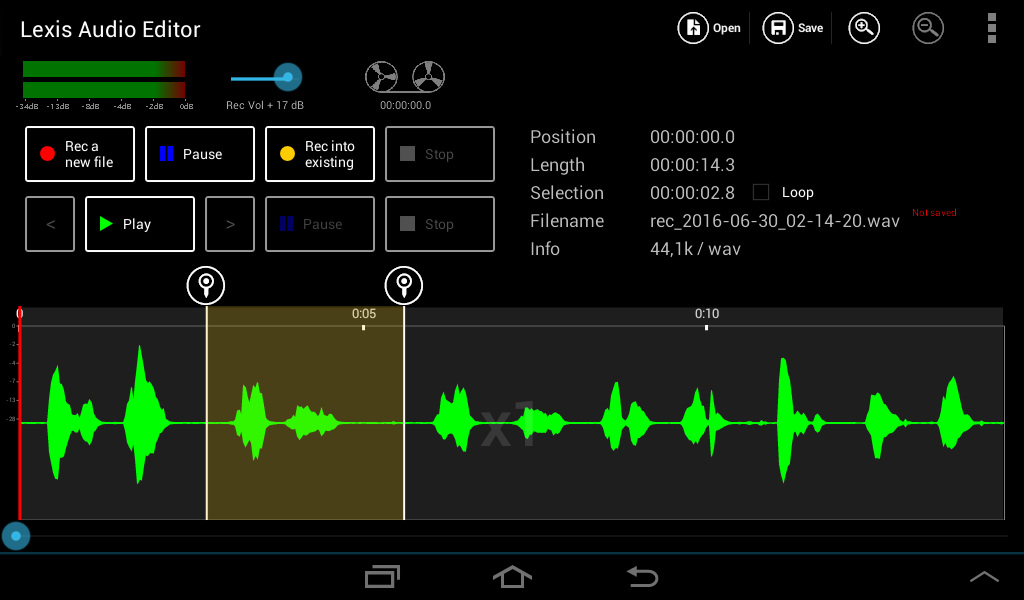
Open an existing or record a new file.
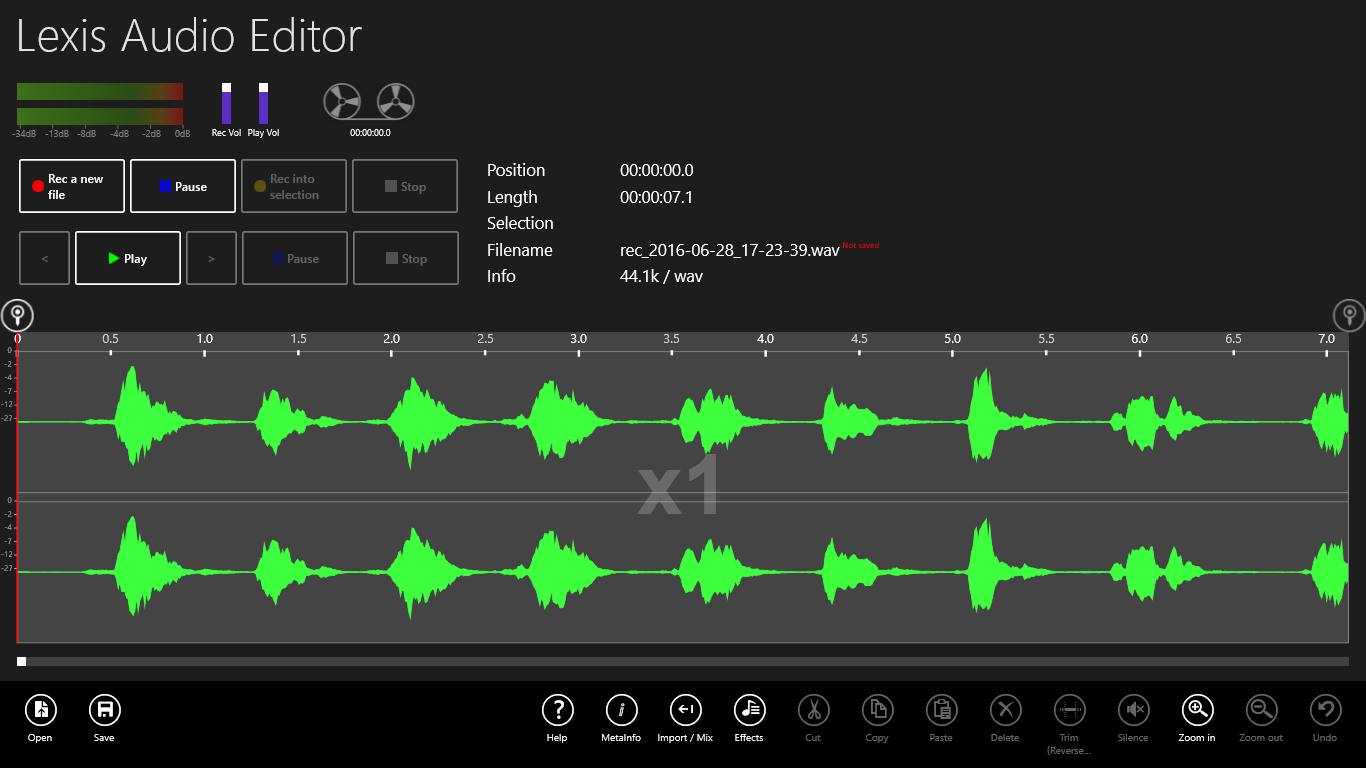
Select a start position or a range with a start and end position. At this position or range the new record will insert.
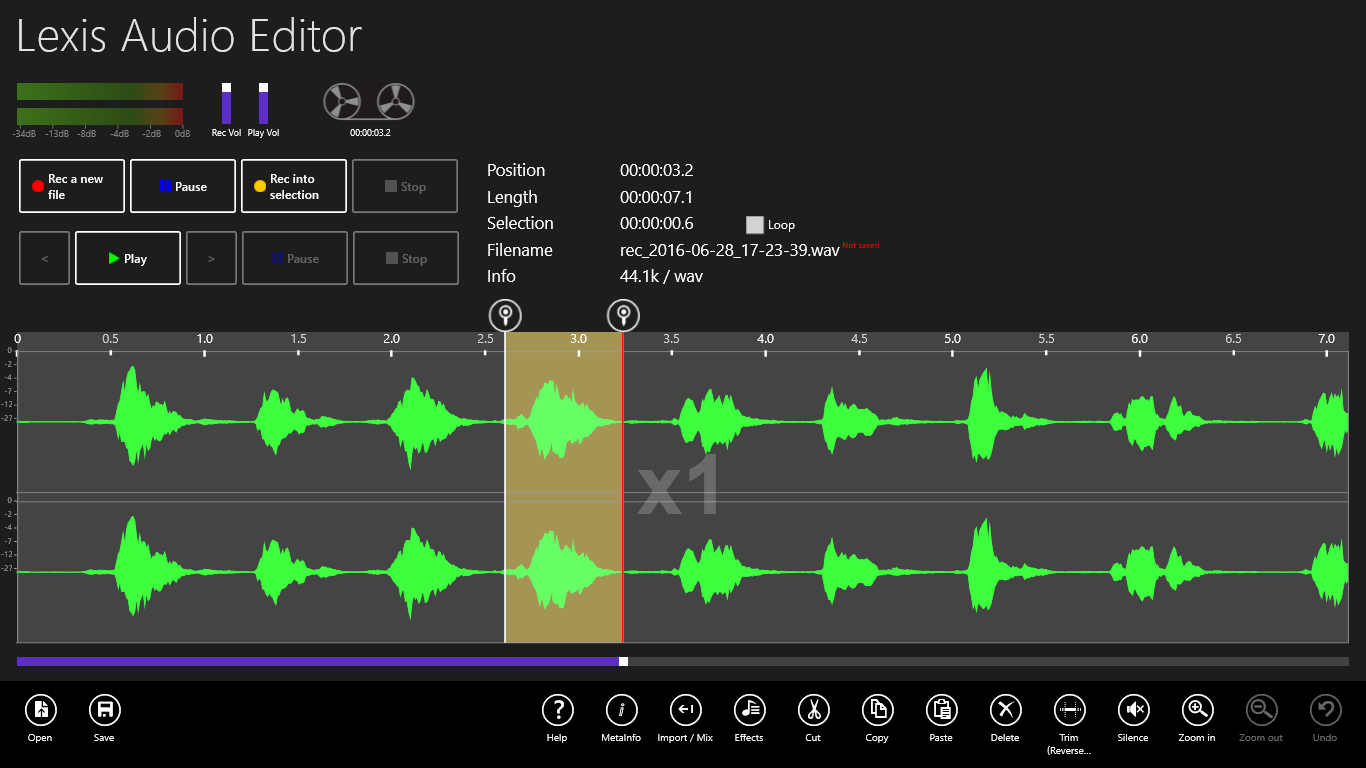
Tap on Rec into selection and record your audio sound.
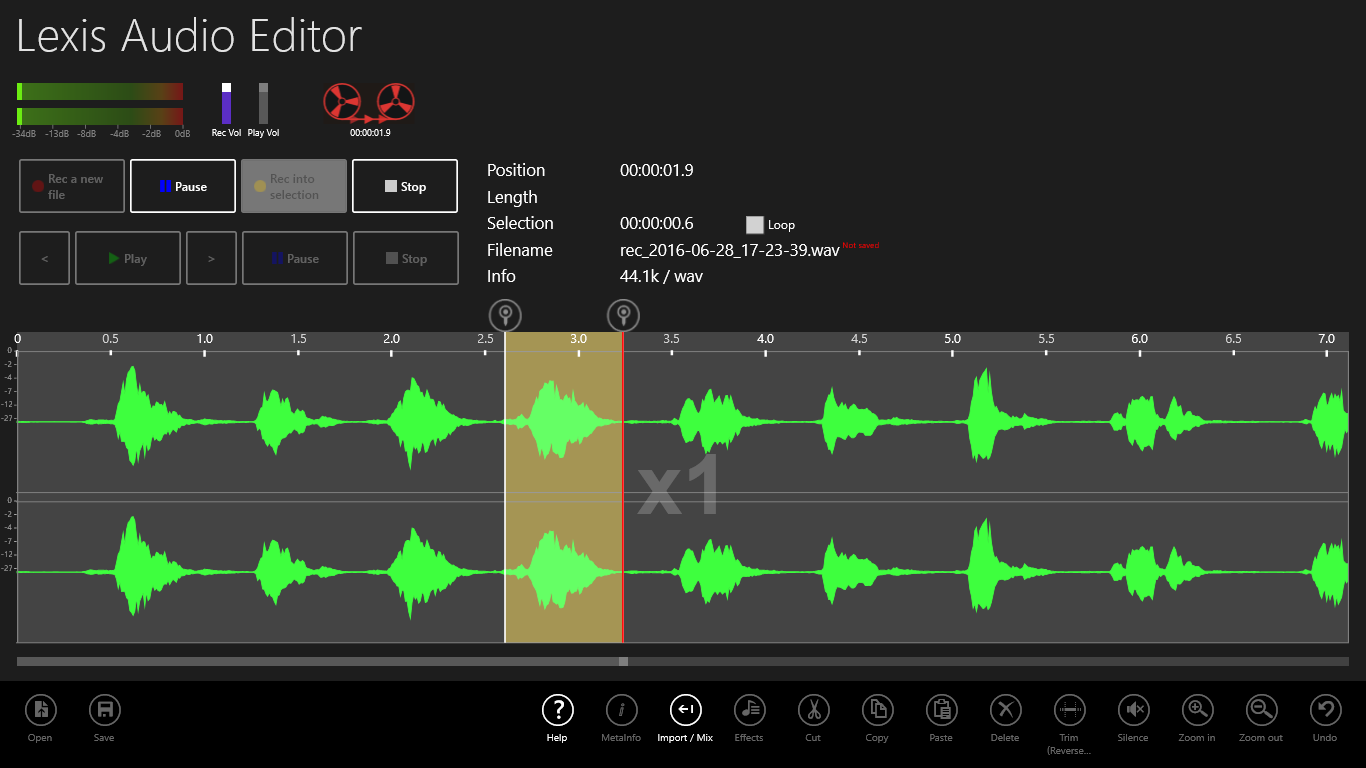
The recorded audio sound will insert in your defined range and the old sound will overwritten.